
Setting up SSO
It is possible to allow users to log in to the Employability Manager and the ShiftCommunicator via Single Sign-On (SSO). This allows users to log in with one account across multiple systems, so they only need to remember a single username and password.
Below you will find instructions on how to configure SSO for our applications.
Requirements
To set up SSO, an Identity Provider is always required. This is a system in which all employees have an account they can use to log in to the system being connected. The Identity Provider must be able to communicate according to a specific standard: OpenID Connect (OIDC). In practice, systems that support oAuth can also be used for SSO. If in doubt, please contact OSE.
Step 1: Configure the Identity Provider
An application must be created in the Identity Provider. The steps required for this differ per Identity Provider. Below you will find instructions for a number of commonly used Identity Providers. If necessary, contact the support team of your Identity Provider.
Redirect URI
To configure SSO, you need a Redirect URI from the system being connected. In the Employability Manager, this can be found in the menu System management → System settings → section: SSO via OpenID Connect.
For the ShiftCommunicator, please contact OSE to have this URL created.
Steps per Identity Provider
Follow the steps at the following link: learn.microsoft.com/en-us/power-pages/security/authentication/openid-settings#create-an-app-registration-in-azure After these steps, you will have the following details: Follow the steps at the following link: https://developers.google.com/identity/openid-connect/openid-connect Contact the support team of your Identity Provider. After configuration, you will have received the following details from your Identity Provider.Microsoft / Azure
https://login.microsoftonline.com/ENTER_TENANT_ID/oauth2/v2.0/authorize
https://login.microsoftonline.com/ENTER_TENANT_ID/oauth2/v2.0/token
https://graph.microsoft.com/v1.0/me
userPrincipalName
profile openid email
Google (Workspace)
https://accounts.google.com/o/oauth2/auth
https://accounts.google.com/o/oauth2/token
https://www.googleapis.com/oauth2/v1/userinfo?alt=json
email
profile email
Other systems
Step 2: Enter the details
Enter the details from the Identity Provider in the system being connected:
Go to the menu System management → System settings → section: SSO via OpenID Connect. Fill in the details from the Identity Provider application. Under the Login button option, you can configure how the SSO button appears. This makes the button recognizable to users. If the Identity Provider you are using is not listed, choose Other and enter the name of the Identity Provider.
Contact OSE to have SSO configured. The following details are required: Always send these details via an encrypted message or a secure link.Employability Manager
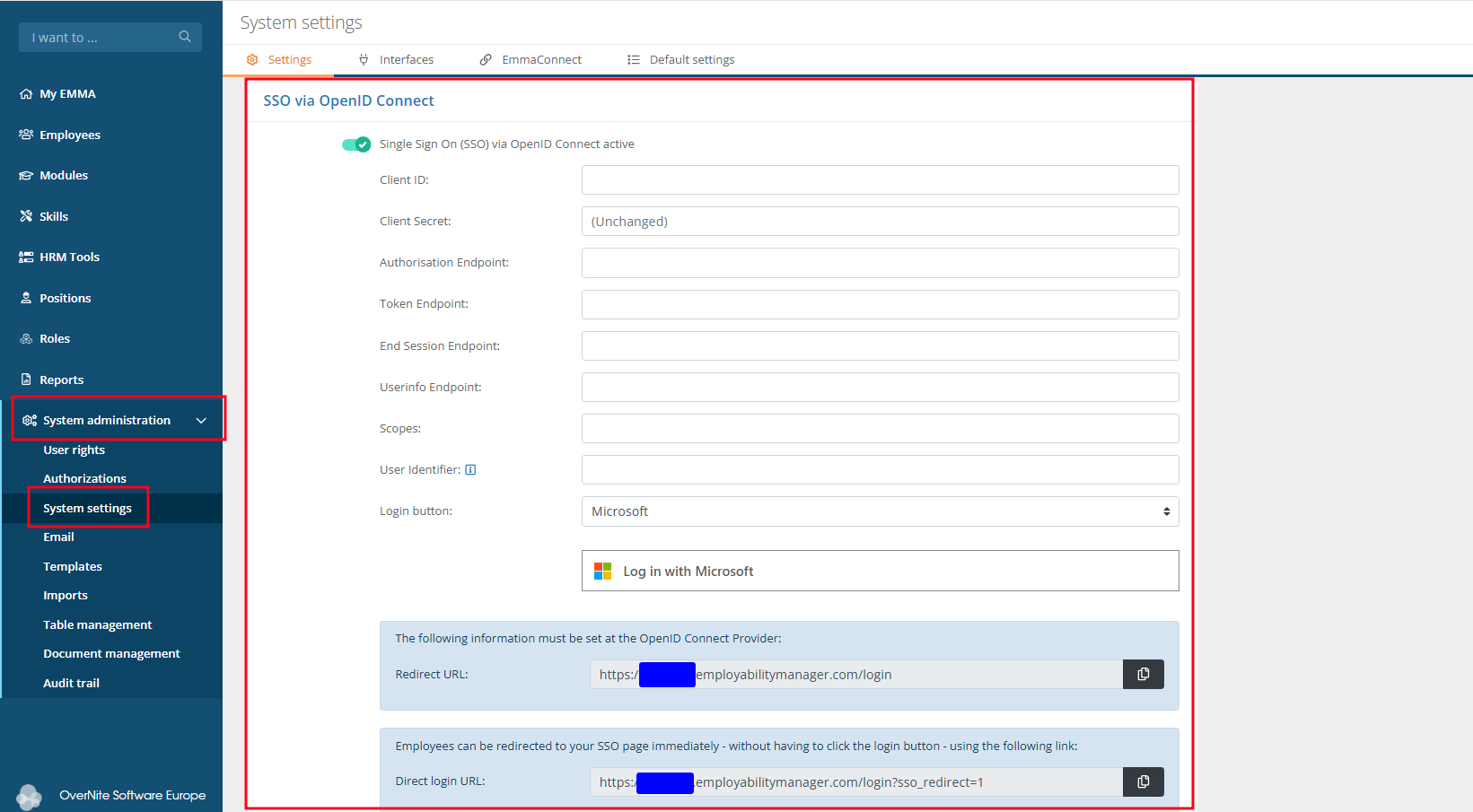
ShiftCommunicator
Step 3: Testing
To test, there must be an active login account that matches the User identifier returned by the Identity Provider. Create one if necessary. Then go to the login screen and test whether logging in via SSO works.
Do the login names of all users need to be updated to match the User identifier from the Identity Provider? If so, please contact OSE.
Step 4: Completion
Is logging in with SSO working? Then you can communicate to users that they can now log in with SSO.
It is possible to disable login with username and password. Please contact OSE for this.